
Tests Waterfall & Telemetry
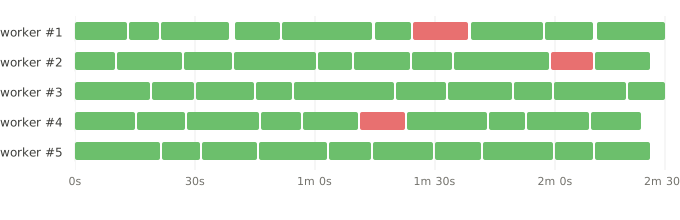
Certain test runners expose information about test execution details, like which parallel worker executed the test, when it started and how long did it take. In addition, certain reporters embed system telemetry to overlay the test execution.
Tests Waterfall
Section titled “Tests Waterfall”The lower section shows one horizontal lane per parallel worker (thread/process). Each test appears as a colored bar:
| Color | Meaning |
|---|---|
| Green | Test passed |
| Red | Test failed |
| Gray | Test was skipped |
The bar’s width represents the test’s duration. Gaps between bars show idle time on that worker. This makes it easy to spot:
- Uneven distribution — one worker doing most of the work while others sit idle
- Long-running tests — single tests that dominate the timeline
- Bottlenecks — workers waiting because a slow test is blocking
Hover over a test bar to see its name, outcome, and retry number. Click a test bar to navigate to that test’s detailed results — other tests are dimmed to highlight the selection.
System Telemetry
Section titled “System Telemetry”When available, the upper section overlays CPU and memory usage synchronized with the test execution timeline, helping you correlate test failures with resource pressure.
- CPU — average load across all CPU cores, rendered with an orange-to-red gradient fill
- Memory — rendered with a blue-to-purple gradient fill
Hover over any point to see the exact CPU percentage and memory usage (both as a percentage and in absolute bytes, e.g. “2.4 GB (54%)”) at that moment in the test run.
Telemetry depends on the test runner reporter. For example, @flakiness/playwright captures CPU and
memory telemetry automatically, while @flakiness/pytest-flakiness does not.
If no telemetry data is present in the report, the telemetry section is simply not shown.