
Attachments & Traces
Test reporters capture files produced during test execution — screenshots, videos, trace files, HTML snapshots, terminal output, and any other artifacts — and include them in the Flakiness report. The Report Viewer displays these inline alongside test results.
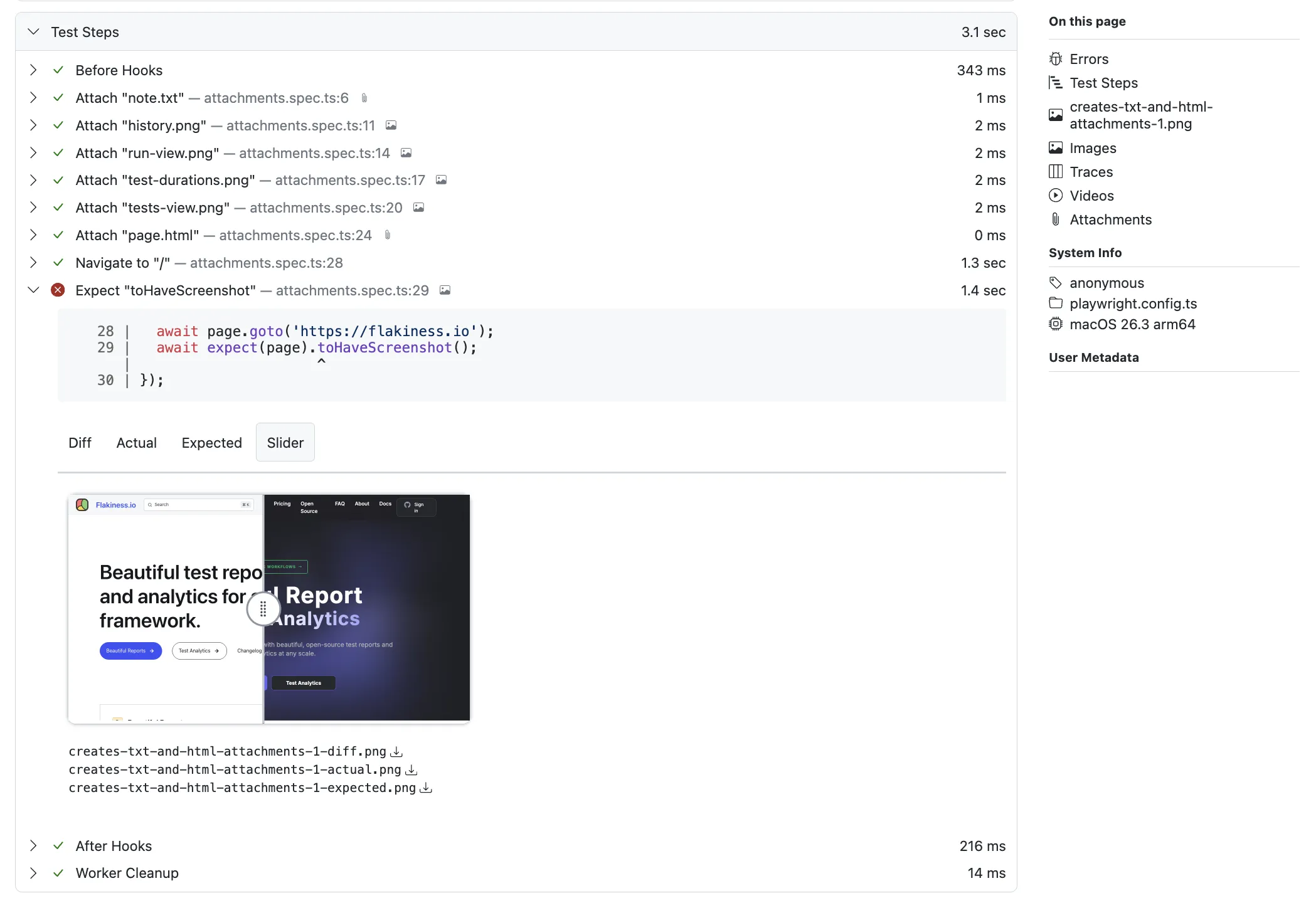
Attribution to test steps
Section titled “Attribution to test steps”Where the test runner exposes step information (for example, Playwright Test’s test.step or
built-in action steps), attachments are attributed to the step that produced them rather
than the test as a whole. Failure context becomes much easier to scan: the screenshot taken
right before an assertion failed sits next to the assertion, not at the bottom of the run.
For runners that don’t emit step events, attachments are attached to the test.
Screenshots
Section titled “Screenshots”Images are displayed inline with the test result. When multiple screenshots are present, they are laid out in a flex-wrapped gallery.
Image Diffs
Section titled “Image Diffs”When a visual comparison test fails, reporters typically produce three images: expected,
actual, and diff. The Report Viewer auto-detects these by naming convention
(name-expected.png, name-actual.png, name-diff.png) and presents them in a tabbed
interface with four views:
- Diff — the computed difference image
- Actual — what the test produced
- Expected — the baseline reference
- Slider — an interactive image comparer that lets you drag between actual and expected
Videos
Section titled “Videos”Video attachments render as inline <video> elements with playback controls.
HTML attachments render inside a sandboxed <iframe> in the Report Viewer, so you can
inspect the exact markup produced at test time. This is useful for DOM snapshots,
rendered email templates, or any other HTML artifact the test captured.
Playwright Traces
Section titled “Playwright Traces”Playwright traces receive special treatment.
When the @flakiness/playwright reporter captures a trace file, the Report Viewer displays
it with a dedicated thumbnail and a link that opens the trace in the
Playwright Trace Viewer, which gives you a full timeline of
actions, network requests, DOM snapshots, and console logs for that test.
Traces are automatically detected when an attachment has the name trace.
Terminal Logs
Section titled “Terminal Logs”Reporters capture stdout and stderr output during test execution. Each test run shows its terminal output in a dedicated section with log entries displayed in chronological order.
Stderr entries are highlighted with a red background to make them visually distinct.
ANSI escape sequences are rendered as styled text, so colors, bold, and other formatting match what you’d see in your terminal.
Miscellaneous Files
Section titled “Miscellaneous Files”Any other attachment type (logs, JSON files, data exports) is shown as a downloadable link.